How to Export Instagram Comments to Excel and CSV (Free, Fast, and No Passwords)

September 26, 2026
How to Export Instagram Comments to Excel and CSV (Free, Fast, and No Passwords)
Instagram is home to some of the richest consumer feedback on the internet. Whether you are running a giveaway, conducting qualitative customer research, or measuring public sentiment around a new product launch, comment sections contain the raw opinions your spreadsheets need.
However, anyone who has tried to copy and paste text from Instagram knows the frustration:
- The mobile app prevents text selection on comment threads.
- Desktop browsers truncate nested replies under "View more replies" buttons.
- Copying more than 100 comments manually causes browser tabs to freeze, stripping timestamps, handles, and reply structures.
In this guide, we walk through how to export up to 50,000+ public Instagram comments into clean Excel (.xlsx) and CSV spreadsheets in seconds, without sharing your personal account credentials or installing suspicious browser extensions.
Why Export Instagram Comments to a Spreadsheet?
Exporting comments to Excel or CSV moves your social media data from a closed app into a flexible tabular format. Here are the four most common operational use-cases:
- Running Fair Contests and Giveaways: To pick a legitimate winner, contest managers must export every entry, filter out duplicate usernames, and verify required hashtags or tags.
- Customer Sentiment Audits: Marketing teams pull discussion datasets to analyze feedback themes, recurring objections, and positive reviews across product launches.
- Influencer Campaign Reporting: Agencies pull comment datasets to calculate the ratio of genuine product inquiries versus generic bot spam on sponsored posts.
- Monitoring Paid Ad Discussions: Performance media buyers track negative reviews, scam links, and customer service issues on active Meta ad campaigns.
The Risk of Traditional Browser Extensions
Before choosing a tool, understand the safety risks associated with traditional browser-based extraction utilities:
Many legacy Chrome extensions require you to log into Instagram through their software or export your private browser session cookies (sessionid). Doing this violates Meta Terms of Service and triggers automated security checkpoints, frequently leading to temporary action blocks or permanent account suspensions.
The Golden Rule of Social Data: Public posts are accessible over the public web. Legitimate extraction tools should process public discussions via independent cloud infrastructure, never requiring your private Instagram password or session cookies.
Step-by-Step: How to Export Comments via Analytics Social
To export comments quickly and safely, we use Analytics Social, a dedicated web platform built for high-speed public social data analysis.
Step 1: Copy the Public Instagram Post or Reel URL
Open Instagram on your phone or desktop browser. Find the public post, Reel, or video you wish to analyze.
- Click the three dots icon (
...) or the Share paper airplane icon. - Tap Copy Link (for example:
https://www.instagram.com/p/DeFWirPIHS1/orhttps://www.instagram.com/reel/C8xYz123/).
Step 2: Paste the URL into Analytics Social
Navigate to Analytics Social.
- Paste the copied link into the main URL input field.
- Click Analyse.
The platform instantly establishes a secure cloud connection to the public media endpoint and begins streaming comments. In benchmark tests, the first batch of rows loads in approximately 0.8 seconds.
Step 3: Filter and Inspect Your Dataset
Before exporting, Analytics Social allows you to filter and inspect the data in real time:
- All: Displays top-level comments and total counts.
- GIFs: Filters posts where commenters used animated stickers.
- Has Replies: Isolates active discussion threads with nested replies.
- Keyword Search: Type any search query (such as "shipping", "price", or a discount code) to filter rows instantly.
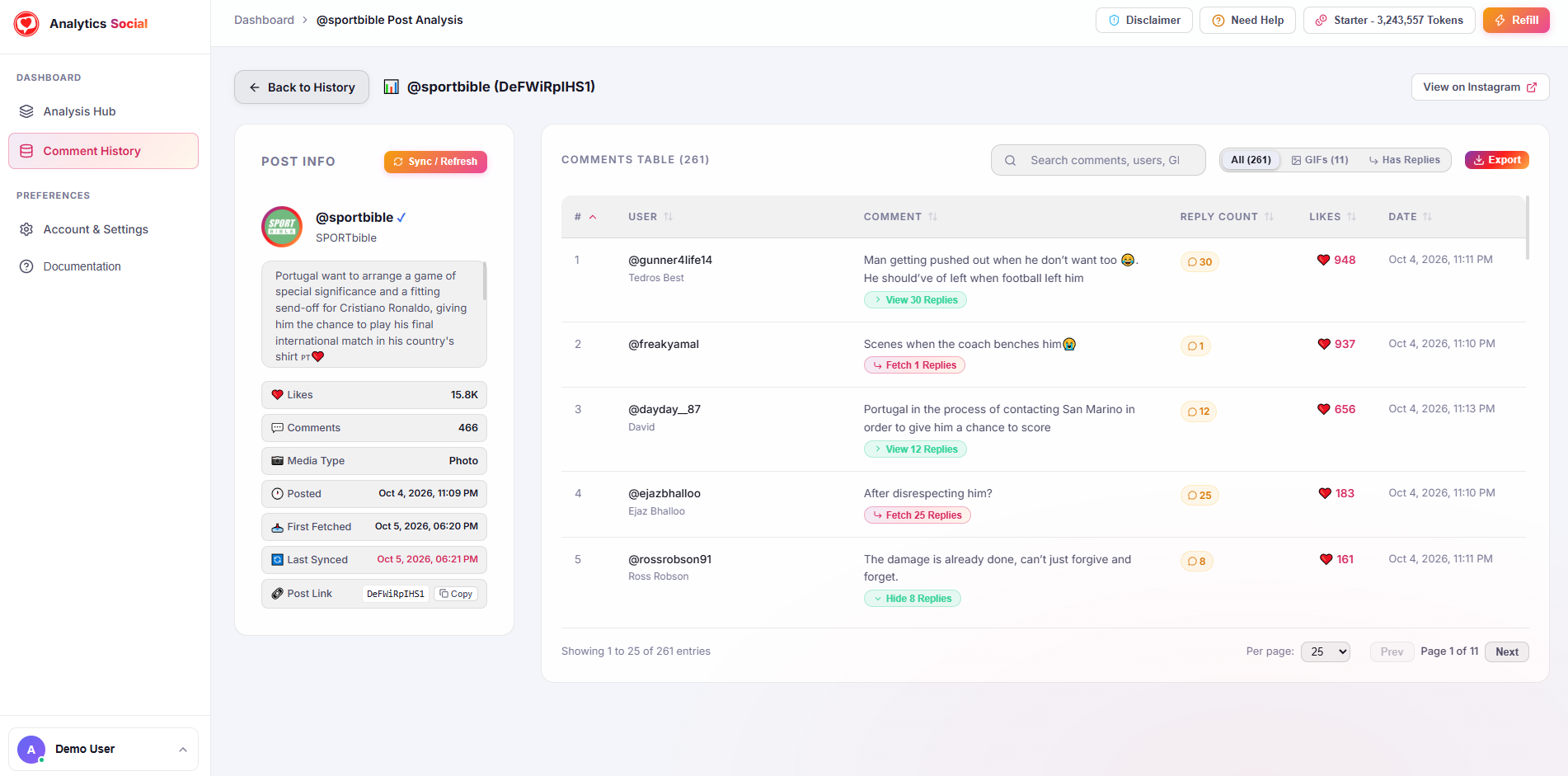
Posts with over 10,000 comments contain valuable nested reply trees. Use the "Fetch Replies" toggle to make sure multi-tier debates are included in your spreadsheet output.
Step 4: Click Export and Choose Your File Format
Once the dataset is ready, click the pink Export button in the upper-right corner of the table:
- CSV (.csv): Ideal for loading into Google Sheets, Airtable, Notion, or data analysis tools like Python pandas.
- Excel (.xlsx): Formatted natively for Microsoft Excel with auto-sized columns and structured headers.
- JSON (.json): Best for software developers integrating data into custom CRM systems or databases.
Your download begins automatically without waiting in email queues.
What Data Fields Are Included in the Export?
When you open your exported file in Excel or Google Sheets, the columns include:
| Column Name | Description | Example |
|---|---|---|
comment_id |
Unique identifier for the comment | 1799201948201 |
username |
Public handle of the commenter | @thatsportfan |
comment_text |
Full unclipped text of the comment | Outstanding performance today! |
likes_count |
Number of likes the comment received | 703 |
reply_count |
Number of nested replies attached | 12 |
parent_comment_id |
Identifies whether the row is a top-level or reply | null (or parent ID) |
timestamp |
Exact date and time the comment was posted | 2026-10-05 18:21:00 UTC |
sentiment_tag |
Automated intent classification | Positive, Inquiry, Spam |
How to Clean Your Exported Data in Microsoft Excel
Once your spreadsheet is open, follow these three quick steps to organize your dataset:
1. Remove Duplicate Usernames (For Giveaways)
If your contest rules allow only one entry per person:
- Select the
usernamecolumn. - In Excel, navigate to the Data tab on the top menu.
- Click Remove Duplicates and select the username column.
2. Search for Buying Inquiries
If you are doing product research:
- Press
Ctrl + F(orCmd + Fon Mac). - Search for high-intent question keywords: "how much", "restock", "sizing", or "discount".
- Highlight these rows in green to build an outreach list for your customer service team.
3. Filter Out Spam Links
Sort by the sentiment_tag column to immediately group flagged phishing links, referral codes, and spam bot entries together, then delete those rows.
Summary & Next Steps
Exporting Instagram comments does not require writing complex code or compromising your account security. By using dedicated cloud tools, you can extract thousands of rows of customer discussions in clean Excel and CSV formats within seconds.
Ready to test your first export? Paste any public post link into Analytics Social to download your dataset for free.